Show FPS CS2: How to Display and Improve Your FPS in Counter-Strike 2
If CS2 feels heavy, delayed, or unstable, checking your FPS is the first step. Learn how to display FPS in-game and use basic tweaks to improve performance.
Why FPS Matters in CS2
FPS, or frames per second, shows how many images your system renders each second while playing Counter-Strike 2. The higher and more stable your CS2 FPS is, the smoother the game feels during movement, aiming, spraying, and fast duels.
In a competitive shooter like CS2, smooth gameplay is not just about visuals. Higher FPS can make mouse movement feel more responsive and reduce the delay between your actions and what you see on the screen. This is especially important when holding tight angles, reacting to peeks, tracking moving enemies, or controlling recoil during sprays.
Low or unstable FPS can make the game feel heavy, delayed, or inconsistent. Even if your aim is good, frame drops may cause stutters during important fights, making it harder to react quickly or keep your crosshair on target. Sudden drops from high FPS to low FPS are often more distracting than a consistently lower but stable frame rate.
FPS also matters because CS2 is built around small timing differences. Seeing an enemy a fraction of a second earlier, reacting smoothly, and keeping consistent input feel can all affect round outcomes. It will not automatically make you a better player, but stable performance gives you a better chance to play at your real skill level.
How to Show FPS in CS2
There are several ways how to show FPS in CS2, and the best method depends on how much information you want on your screen. You can use the in-game telemetry settings, a console command, Steam’s built-in FPS counter, or launch options.
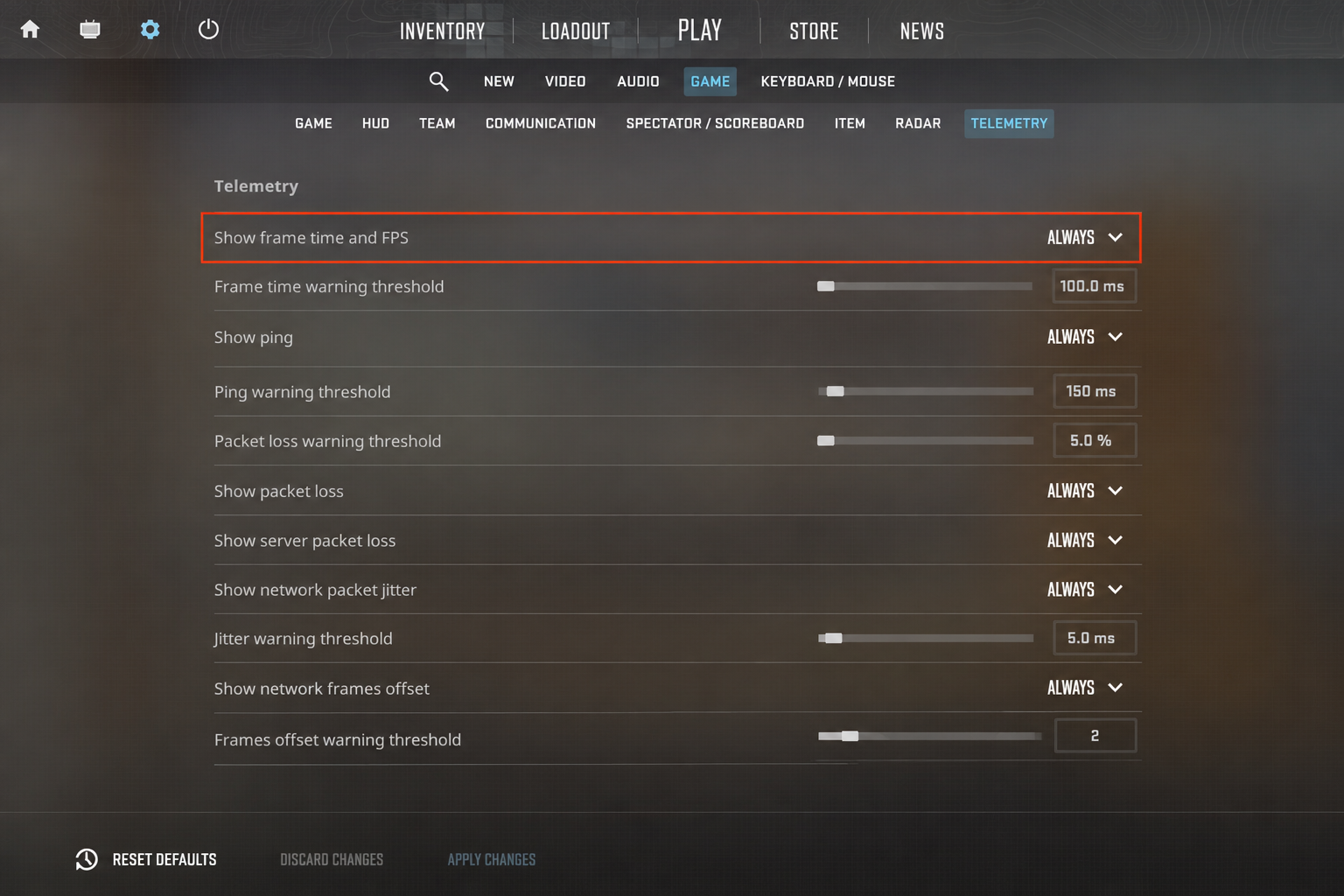
Method 1: Use CS2 In-Game Settings
The easiest way to display FPS is through CS2’s own settings menu.
- Open Settings
- Go to Game
- Find the Telemetry section
- Set Show frame time and FPS to Always.
After that, CS2 will display your FPS during matches without needing any console commands.
This is one of the best options for most players because it is built directly into the game and is easy to turn on or off.
Method 2: Use the Console Command
You can also show FPS with a simple console command. First, enable the developer console in Settings > Game. Then press ~ to open the console.
Enter cl_showfps 1 to turn on the FPS counter. To hide it again, enter cl_showfps 0.
This method is useful if you want a quick FPS check during practice, matchmaking, or after changing your video settings.
Method 3: Use Steam FPS Counter
Steam also has a built-in FPS counter that works across Steam games, including CS2.
- Open Steam Settings
- Go to In Game
- Find the in-game FPS counter
- Choose where you want the counter to appear on your screen (the top-left or top-right corner).
This is a good option if you want a simple FPS display without using CS2-specific settings or commands.
Method 4: Use Launch Options
If you want CS2 to show FPS every time you launch the game, you can add the FPS command to launch options.
- Open your Steam Library
- Right-click Counter-Strike 2c
- Choose Properties
- Find Launch Options
- Add +cl_showfps 1
This makes the FPS counter appear automatically whenever you start CS2. To remove it, delete the command from launch options or use cl_showfps 0 in the console.
For most players, the in-game telemetry setting is the easiest long-term option, while cl_showfps 1 is the fastest way to check FPS instantly.
How to Increase FPS in CS2
If you want to know how to increase FPS in CS2, do not think only about chasing the biggest number in the corner of the screen. A higher number is nice, sure, but the real goal is smoother gameplay in actual matches. That usually comes down to three things: making the game easier for your system to run, closing anything that steals resources, and testing changes instead of guessing.
Here’re some useful commands.
| Command | What It Does |
|---|---|
| cl_showfps 1 | Shows your FPS counter |
| fps_max 0 | Removes the FPS cap |
| fps_max 144 | Caps FPS at 144 for 144Hz monitors |
| fps_max 240 | Caps FPS at 240 for 240Hz monitors |
| fps_max 300 | Caps FPS at 300 for high-end systems |
| cq_netgraph 1 | Shows connection and performance information |
Using fps_max 0 can give you the highest possible FPS, but uncapped FPS is not always the smoothest option. On some systems, it can make performance jump around too much. If that happens, try capping FPS slightly above your monitor’s refresh rate. For example, use fps_max 144 for a 144Hz display or fps_max 240 for a 240Hz display.
Lower Graphics Settings
The fastest way to improve FPS is to reduce demanding video settings. Start with shadows, particles, ambient occlusion, and texture details. Lower settings reduce GPU load and can make the game feel smoother, especially on older PCs.
For competitive play, many players prefer performance-focused settings because visual clarity matters more than high-quality graphics. You can also lower your resolution or use a stretched aspect ratio if your system struggles to maintain stable FPS.
Use Fullscreen Mode
Fullscreen mode usually provides better performance and lower input delay than windowed or borderless modes. If CS2 feels less responsive, switch to fullscreen and test your FPS again.
Close Background Apps
Programs running in the background can reduce FPS and cause stutters. Before playing, close browsers, recording tools, launchers, downloads, and other apps that use CPU, GPU, or RAM. This is especially important if you have limited system memory.
Update GPU Drivers
Outdated graphics drivers can cause lower FPS, crashes, or unstable performance. Keep your NVIDIA, AMD, or Intel drivers updated, especially after major CS2 updates.
Use Launch Options Carefully
Launch options are useful for convenience, but they are not magic FPS boosters. For example, +cl_showfps 1 can automatically show FPS when you start CS2, but it does not improve performance by itself. Some players use -high to prioritize CS2, but results vary depending on the system.
Be careful with long launch option lists from old CS:GO guides. Many outdated commands no longer work in CS2, and some have no real performance benefit at all.
Keep FPS Stable
Do not judge performance only by peak FPS. Test your settings in deathmatch and real matches, especially around smokes, explosions, and busy fights. A slightly lower but stable FPS is usually better than a higher number with constant drops.
Articles by this author