FOV CS2: How to Change Viewmodel and Improve Visibility
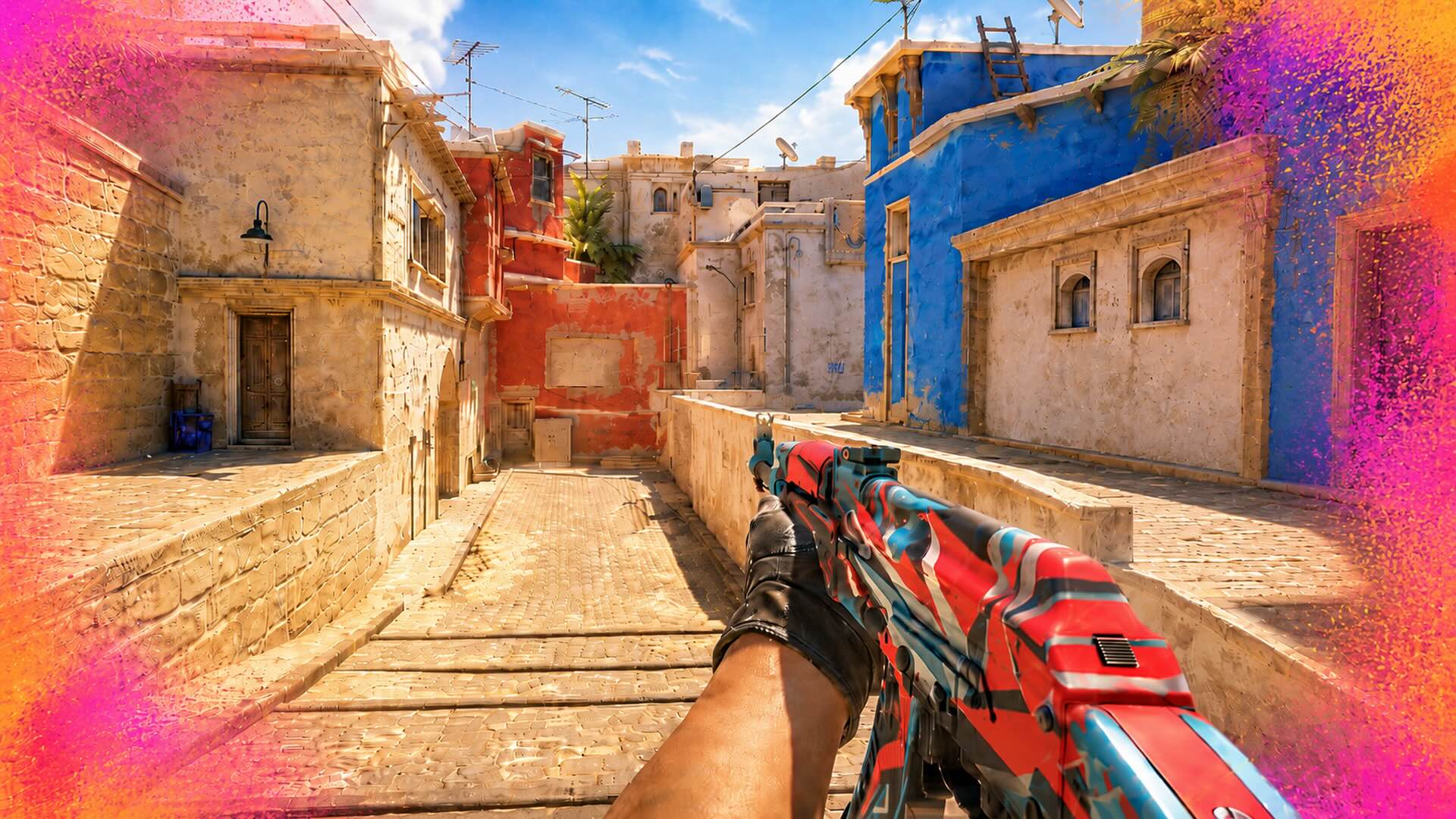
FOV in CS2 mainly refers to your viewmodel, not your actual field of view. This guide explains how to change viewmodel settings, use console commands, and pick the right preset for your playstyle.
What Is FOV in CS2?
FOV stands for Field of View. In most first-person shooters, it is the setting that decides how much of the game world you can see on your screen at one time. Higher FOV usually means a wider view. Lower FOV makes the image feel more zoomed in.
CS2 is a bit different here. You cannot just open the settings, drag a slider, and increase your real gameplay FOV. The actual visible game world is fixed. So no, changing FOV settings in CS2 will not let you see wider angles, spot enemies earlier, or get extra vision around corners.
When players talk about what FOV is CS2, they usually mean viewmodel FOV. That is the setting that changes how your weapon and hands look on the screen. It affects how close the gun feels, how large it looks, and how much space it takes up while you play.
Most players raise viewmodel FOV because the weapon starts taking up less screen space. It looks a little farther away, a little smaller, and usually less distracting. Lower values keep the gun closer to the default look, which some players actually prefer, especially if they are used to older Counter-Strike settings.
CS2 FOV settings are mostly about comfort. They do not expand your real vision, but they can make the screen feel cleaner. And in a game where every small distraction matters, that can still be useful.
How to Change FOV in CS2
If you want to know how to change FOV in CS2, the main method is to adjust your viewmodel settings. Here’re the main methods to do this.
Method 1: Use the Developer Console
The developer console gives you the most control over your CS2 FOV and viewmodel settings.
To enable it:
- Open Settings
- Go to Game
- Find Enable Developer Console
- Set it to Yes
- Press the console key, usually ~
Then enter viewmodel_fov 68.
This command changes how far the weapon appears from the camera. In CS2, the value usually ranges from 54 to 68. The default is usually viewmodel_fov 60. Many players move it up to 68 because the screen feels less crowded. The weapon sits farther away and does not cover as much space. A lower number keeps it closer and more noticeable.
Method 2: Adjust Viewmodel Offset Commands
FOV is only part of the viewmodel setup. You can also move the weapon around the screen with offset commands. These commands move the weapon left or right, forward or backward, and up or down.
| Command | What It Changes |
|---|---|
| viewmodel_fov | Changes how far the weapon appears from the camera |
| viewmodel_offset_x | Moves the weapon left or right |
| viewmodel_offset_y | Moves the weapon forward or backward |
| viewmodel_offset_z | Moves the weapon up or down |
| viewmodel_presetpos 1/2/3 | Switches between built-in viewmodel presets |
The usual value range is from -2.5 to 2.5 for viewmodel_offset_x and from -2 to 2 for viewmodel_offset_y and viewmodel_offset_z.
Method 3: Use Viewmodel Presets
CS2 also includes basic viewmodel presets in the settings menu. These are easier to use than console commands, but they offer less control.
You can also switch presets through the console:
- viewmodel_presetpos 1
- viewmodel_presetpos 2
- viewmodel_presetpos 3
These presets change the general position of your weapon model. They are useful for beginners who want quick adjustments without manually changing every value.
For the best result, start with a preset, test it in deathmatch or practice mode, and then fine-tune the values through the console.
Recommended FOV and Viewmodel Settings
There is no magic best FOV CS2 setup that works for everyone. Some players want the cleanest possible screen. Others prefer the gun to stay closer because it feels more natural during sprays and fast peeks.
Still, these setups are good starting points.
| Setup | Commands | Best For | Why It Works |
|---|---|---|---|
| Universally Best | viewmodel_fov 68viewmodel_offset_x 2.5viewmodel_offset_y 1viewmodel_offset_z -1.5 | Most players, Competitive, Premier, Faceit | This setup gives a strong balance between visibility and comfort. The weapon appears smaller, sits farther to the right, and stays low enough to reduce clutter without feeling too far from the default CS2 viewmodel. |
| Aggressive Playstyle | viewmodel_fov 60viewmodel_offset_x 1viewmodel_offset_y 1viewmodel_offset_z -1 | Entry fraggers, riflers, close-range fights | This setup keeps the weapon closer to the standard position, which can feel more natural during fast peeks, sprays, and close duels. It is cleaner than default settings without making the weapon feel too distant. |
| Max Visibility | viewmodel_fov 68viewmodel_offset_x 2.5viewmodel_offset_y -2viewmodel_offset_z -2 | Players who want minimum weapon distraction | This setup pushes the weapon model farther away and lower on the screen. It does not expand the real gameplay FOV, but it frees up more visual space around the center of the screen and can make duels, retakes, and site entries feel clearer. |
A good way to test these settings is to load into Deathmatch or a practice map and play normally for a few minutes. Do not judge the setup after looking at it for five seconds. Some viewmodels feel strange at first but become comfortable once you start aiming, peeking, and spraying.
The best CS2 viewmodel is the one you stop noticing. If your gun is not distracting you, your screen feels clean, and your aim still feels natural, that is probably the right setup for you.
You might also like: How to Defuse a Bomb in CS2
Articles by this author