Can You Play CS2 on Mac: Ultimate 2026 Guide
Can you play CS2 on a Mac in 2026? This guide explains what works, why macOS isn’t supported, and the best ways to run Counter-Strike 2 using cloud gaming or Windows.
Counter-Strike is one of those games almost everyone in FPS knows. It has been around for years, and the core idea hasn’t really changed – two teams, simple objectives, and a lot of focus on aim, timing, and positioning.
On PC, playing CS2 is simple. You open Steam, install the game, and play.
On Mac, it’s a different story.
Can You Play CS2 on Mac?
Yes, you can run CS2 on a Mac, but it’s not as simple as just hitting “Play” in Steam. Since Valve didn’t release CS2 for macOS, you won’t find an official download or launcher. That’s why so many players keep asking can you play CS2 on Mac.
Part of the confusion comes from CS:GO, which ran fine on Macs for years. Then CS2 replaced it, and that support ended. Now, if you want to run the game on a Mac, you have to jump through some extra hoops.
Why CS2 doesn’t work on Mac
- Valve never released CS2 for macOS
- Source 2 does not have full support for running the game natively on Mac
- macOS also moved away from older graphics frameworks such as OpenGL, which made compatibility more limited
The current Counter-Strike 2 macOS support 2026 status hasn’t changed: Valve still doesn’t offer an official macOS version of the game. Mac users can only play through workarounds such as cloud gaming or compatibility layers, with no indication that native support is planned.
Best Ways to Run CS2 on a Mac
Here are the main options players actually use for CS2 Mac setups.
1. Cloud Gaming
This is the option most people end up using.
And yeah, it feels a bit strange at first. The game isn’t running on your Mac at all. It’s running somewhere else (on a remote Windows machine) and you’re basically watching and controlling it through a stream.
A common option here is NVIDIA GeForce NOW, since it lets you connect your Steam library and launch supported games from there.
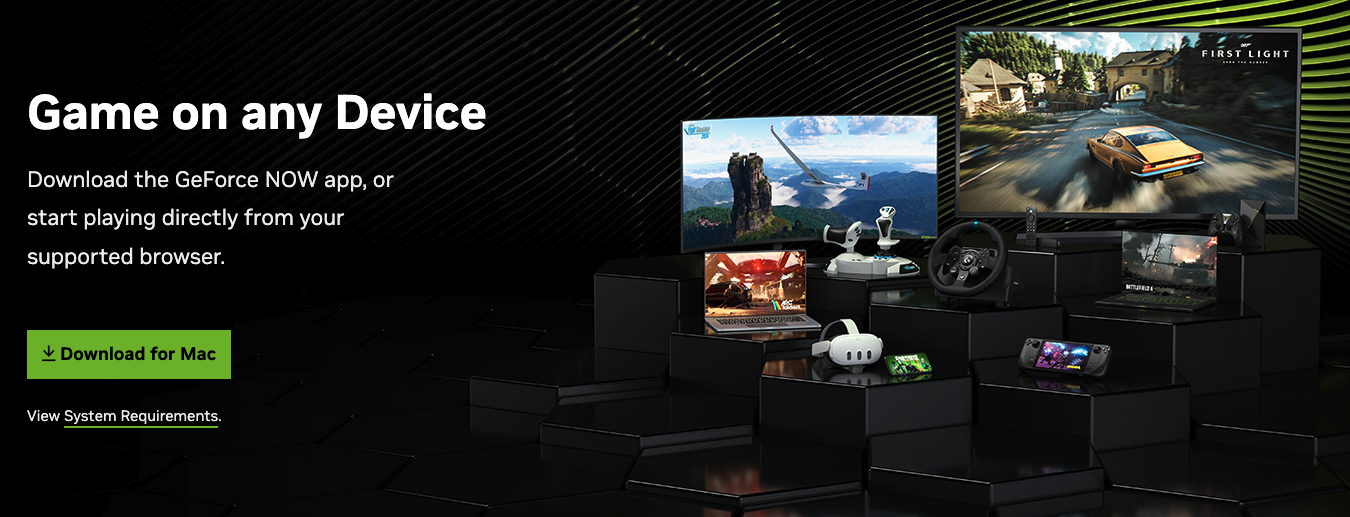
You create an account, connect your Steam account, and launch CS2 through the cloud platform. Since CS2 is free to play, you do not need to buy the game separately, but you still need Steam access.
No installs. No setup headaches.
But there’s a catch (there’s always a catch).
For 1080p gameplay, around 25 Mbps is a good baseline. A wired connection is better, though strong Wi-Fi can also work. If your connection is unstable, you may notice input delay, stutters, or lower image quality. And in CS2, input delay matters.
Strengths:
- No installation needed
- Works on all Macs (Intel and M1/M2/M3)
- No hardware limits on your sid
Weaknesses:
- Requires stable internet (~25 Mbps or higher)
- Input delay can affect gameplay
- Usually requires a subscription
2. Boot Camp
If you’re on an older Intel-based Mac, this is a completely different story.
You can install Windows using Boot Camp and just run CS2 like you would on a normal PC. No streaming, no workarounds – the game runs directly on your hardware.
Sounds great, right?
It mostly is. But you do have to reboot every time you switch between macOS and Windows, which gets annoying faster than you’d think.
You will also need a Windows ISO file and enough free storage. Realistically, 50–100 GB is a safer range, especially if you plan to install Steam and other games too.
Also – and this is important – this only works on Intel Macs. If you’re on M1, M2, or M3, this option is off the table.
Strengths:
- Native performance (no streaming)
- Better FPS than most other methods
- Full compatibility with CS2
Weaknesses:
- Only works on Intel Macs (not M1/M2/M3)
- Requires storage space and setup
- You need to restart to switch systems
3. Virtual Machines (Parallels, VMware)
Virtual machines sound convenient at first.
You install something like Parallels Desktop or VMware Fusion, then run Windows inside macOS as if it were another app. After that, you install Steam inside Windows and try to launch CS2.
No rebooting. No dual-boot setup. On paper, that sounds great.
In practice, it is not ideal for CS2.
A virtual machine shares your Mac’s resources, including CPU, RAM, and storage. GPU access is also limited, and that matters a lot for a shooter like CS2. Performance can be rough, especially if you expect smooth FPS.
There’s also the anti-cheat issue. Some setups just won’t work properly, and even if the game launches, it may not run well enough to be playable.
Strengths:
- No need to restart your Mac
- Works on Apple Silicon (M1/M2/M3)
Weaknesses:
- Limited performance
- Not suitable for competitive play
- CS2 may run poorly because of performance overhead and anti-cheat limitations
4. Compatibility Layers (Wine, CrossOver)
This is more of an “if you really want to experiment” option.
The setup usually goes like this: you install Wine or CrossOver, install Steam inside that environment, and then try to launch CS2 from there.
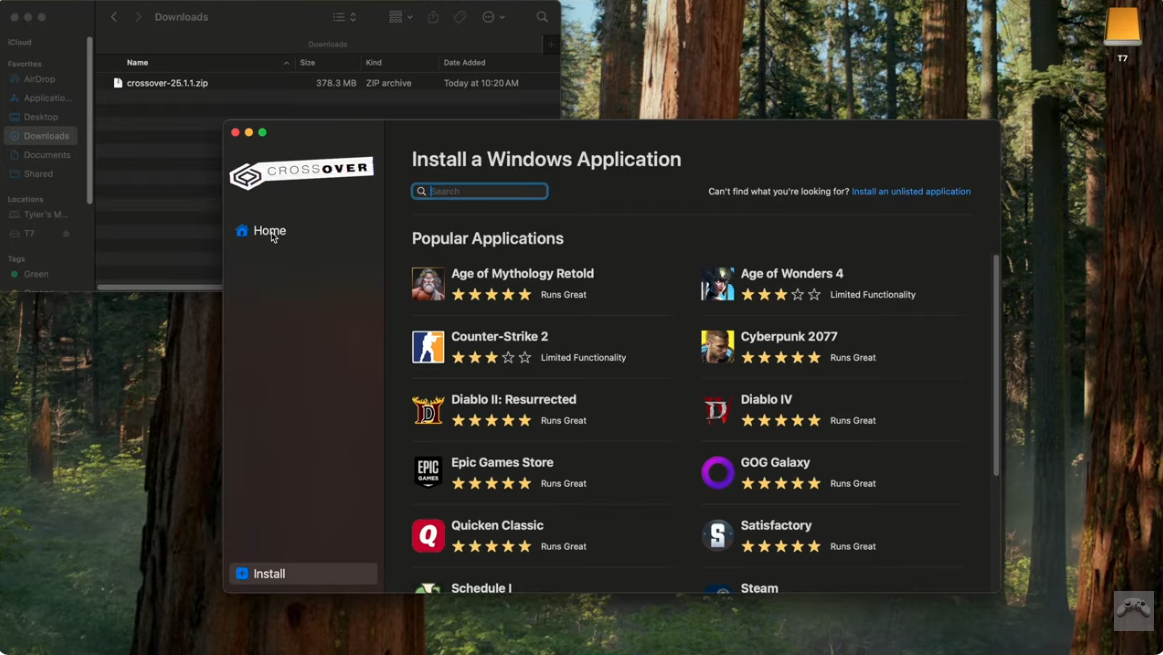
Sometimes it works surprisingly well.
Other times… not at all.
The benefit is that you do not need a full Windows installation, and the setup can be lighter than Boot Camp. But that does not mean it is easy.
Performance is unstable. Compatibility is limited. You may need manual tweaking, and even then, CS2 may not run properly. It can work better for some Windows apps, but CS2 is not the kind of game where you want random crashes, FPS drops, or input issues.
Strengths:
- No full Windows installation needed
- Lighter setup compared to Boot Camp
Weaknesses:
- Unstable performance
- Limited compatibility with CS2
- Requires manual setup and tweaking
Final Verdict
So, can you play CS2 on Mac? Yes. That part isn’t the problem.
The problem is how you get there.
There’s no clean, native way to do it. No one-click install. No official support. Just a handful of workarounds, each with its own trade-offs.
And yeah, that’s a bit frustrating.
But if you’re willing to deal with that, especially with cloud gaming, it’s still very possible to play. Just don’t expect it to feel as smooth or straightforward as it does on a regular PC.
- You will not get native performance
- Some methods have input delay or lower FPS
- Setup can take time depending on your Mac
- Not all Macs (especially M1/M2/M3) handle this well
Articles by this author